
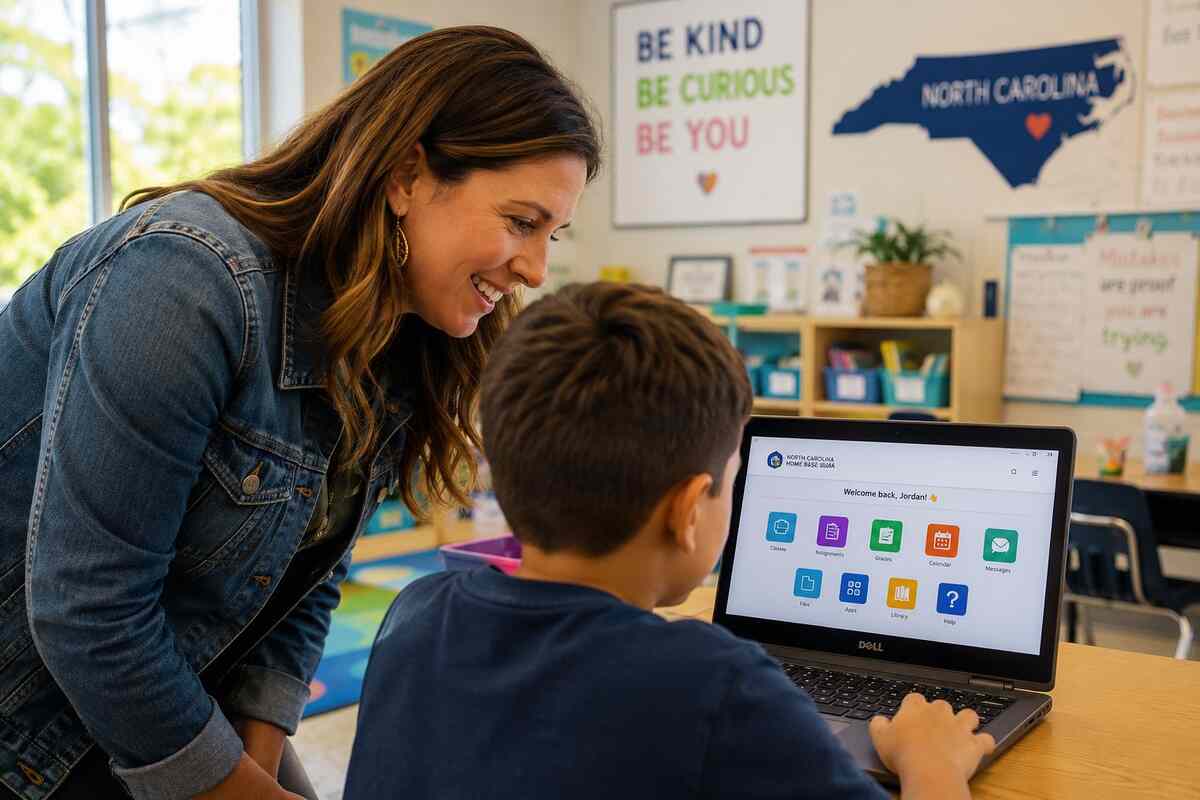
If your child attends a North Carolina public school, you’ve probably seen the word “NCEdCloud” in a back-to-school email or heard it from a teenager who can’t log in to their homework app. If you’re a teacher, you likely use it every day without thinking much about what it actually does.
NCEdCloud is the single login system used across North Carolina’s K-12 public schools. Instead of separate usernames and passwords for every app, students, teachers, and staff sign in once and get access to everything they need, including PowerSchool, Canvas, and other learning tools.
This guide covers what it is, how it works, who needs an account, and how to handle the most common login problems.
What Is NCEdCloud and Why Does North Carolina Use It?
NCEdCloud stands for the North Carolina Education Cloud. It’s an identity and access management (IAM) system, meaning it confirms who you are before letting you into school apps and websites.
Before a system like this existed, a single student might need separate logins for their grade portal, reading app, math software, and email. Multiply that across every student and teacher in the state, and you get constant forgotten passwords and overloaded IT help desks.
North Carolina’s Department of Public Instruction (NCDPI) built it to fix that statewide. Every public school unit, meaning every district and charter school, uses it by default, in partnership with Identity Automation’s RapidIdentity platform. That’s why the login process looks the same whether your child is in Charlotte, Raleigh, or a small rural district.
How NCEdCloud Works: One Login for All School Apps
Think of NCEdCloud as a master key. Instead of a separate key for every door, one login unlocks everything you’re allowed to access.
Here’s the basic flow:
- A student, teacher, or staff member logs in once at the the portal.
- The system checks the username and password against a central directory.
- The user lands on a dashboard showing every app they have permission to use.
- Clicking an app icon signs them in automatically, with no second password needed.
This is called single sign-on (SSO), the same concept behind a “Sign in with Google” button, just built specifically for North Carolina schools. It also makes accounts easier to manage: schools can disable access when a student transfers out and roll out protections like multi-factor authentication across every connected app at once.
For parents, the practical takeaway is simple. If your child can log in to NCEdCloud, they can reach everything their teacher has assigned. If they can’t, nothing else works either.
Who Needs an NCEdCloud Account
NCEdCloud accounts are issued automatically to nearly everyone connected to a North Carolina public school, not just a select group.
Students all receive an account. Teachers usually generate and manage accounts for younger students, often handing out printed login slips at the start of the year, while older students typically claim and manage their own.
Teachers use it daily and often manage it on both ends: logging in themselves and creating or resetting accounts for their own students, especially in elementary grades. Staff and administrators, including front office employees and counselors, also get accounts, with LEA Administrators handling policy and troubleshooting at the district level when issues can’t be solved in the classroom.
Parents typically don’t get their own account. Parental involvement usually means helping a child log in or reset a password. Some districts offer separate parent portals for grades and attendance, which is a different system, so check with your child’s school if you’re unsure where to look.
What Apps Connect Through NCEdCloud
One of the most common reasons people search for NCEdCloud isn’t curiosity about the system itself. It’s because they’re trying to reach a specific app and landed on an unfamiliar login screen first.
It connects to a range of educational tools used across North Carolina schools, including:
- PowerSchool for grades, attendance, and report cards
- Canvas for assignments and coursework
- Clever for rostering and login access to additional learning apps
- Publisher and curriculum platforms for reading, math, and other instructional software
Not everyone sees the same apps. The dashboard is personalized, so a high school student might see different icons than a third grader, and teachers see administrative tools students never have access to. This is also why schools point you to NCEdCloud instead of a direct PowerSchool or Canvas link: it is the hub everything else branches from.
How to Claim Your NCEdCloud Account
Before regular use, every account goes through a one-time setup called “claiming.” This is different from simply logging in. Claiming is what creates a personal password and security settings for the first time.
The process works roughly the same way for students and staff:
- Go to the official portal at my.ncedcloud.org.
- Click Claim My Account on the login screen.
- Select the right claim policy, either Student or Employee.
- Enter the requested ID information and complete the CAPTCHA.
- Create a password that meets the system’s requirements.
- Answer the required security challenge questions.
Younger children usually skip this themselves. Teachers generate default usernames and passwords and send them home directly, often as a printed slip at the start of the year. If your elementary-age child mentions a “default password,” that’s what they mean, and their teacher can reset it.
How to Log In to NCEdCloud at my.ncedcloud.org
Once an account exists, whether claimed independently or set up by a teacher, logging in only takes a few steps: go to my.ncedcloud.org, enter the username and password, complete MFA if it’s enabled, and land on the personalized dashboard.
A few things solve most login complaints. Double-check for typos, since student usernames often follow a specific district format like an ID number. Make sure Caps Lock is off, since passwords are case-sensitive. Confirm you’re on the official URL rather than a look-alike page, and use an up-to-date browser to avoid display issues.
If the page won’t load at all, check the NCEdCloud status page first. That’s the fastest way to rule out a wider outage before assuming it’s an account-specific problem.
What to Do If You Forget Your NCEdCloud Password
A forgotten password is the most common login issue, and also one of the easiest to fix once you know who handles it.
Students generally can’t reset their own password without help, by design. Elementary and younger students should ask their teacher, who can regenerate a default password directly. Older students may have a self-service reset option, depending on district policy, often using the security questions set during account claiming.
Staff usually have more self-service options through a “Forgot Password” link, provided MFA or security questions were already set up. If none of that works for anyone, the next step is the same: contact your school or district’s LEA Administrator or IT help desk, since day-to-day support happens locally rather than through a statewide line.
Why Multi-Factor Authentication Matters for NCEdCloud
Multi-factor authentication (MFA) adds a second layer of verification beyond a password, typically a time-based code or a device confirmation like a fingerprint or face scan.
North Carolina has been expanding MFA requirements across NCEdCloud, particularly for staff, as part of a broader school cybersecurity push. Staff accounts often carry access to sensitive student data, so a compromised account can expose far more than one person’s information. It supports two main methods: TOTP, a rotating code from an authenticator app and the default for most accounts, and WebAuthN, a newer option supporting passkeys like Touch ID, Face ID, Windows Hello, or a physical security key.
Most parents and students won’t deal with MFA often, since it’s mainly aimed at staff with administrative access. If your child’s account ever prompts for an unexpected verification code, it’s worth checking in with the school rather than dismissing it.
Common NCEdCloud Login Problems and How to Fix Them
Beyond forgotten passwords, a few other issues come up regularly.
If the page won’t load, check the status page for a known outage before troubleshooting further. If you get an “incorrect username or password” error despite being sure it’s right, it’s usually a typo, Caps Lock, or an outdated saved password in autofill, so try typing it manually. If the dashboard loads but an app icon doesn’t work, that’s typically an issue with the connected app or a permissions setting, not NCEdCloud itself, and is worth reporting to a teacher or IT staff.
An account locked out after several failed attempts usually just needs a short wait before trying again. A student account showing as deactivated or “not found” often means a school transfer hasn’t fully updated enrollment yet, which the receiving school’s office can resolve. We’ve covered these login errors in more depth in our NCEdCloud login access guide.
Tips for Parents Helping Kids Use NCEdCloud at Home
A few habits make this noticeably smoother at home, regardless of your child’s age.
Keep login details somewhere safe but easy to find, whether that’s a password manager or a consistent physical spot. Don’t assume school logins work like personal accounts, since usernames are often ID-based rather than name-based, which can confuse kids used to email or gaming logins. If your child reaches a “claim my account” screen, let the school guide that process rather than guessing, especially around security questions tied to personal information.
For older students, treat login issues as a chance to build responsibility rather than just an inconvenience. For younger students, go to the teacher first, since they manage these accounts directly and can usually resolve problems faster than a general help desk.
FAQs
What is NCEdCloud used for?
NCEdCloud is North Carolina’s single sign-on system for K-12 public schools. It lets students, teachers, and staff log in once to reach multiple learning apps, including PowerSchool and Canvas.
Is NCEdCloud the same as PowerSchool?
No. PowerSchool is a separate app for grades and attendance. NCEdCloud is the login gateway that connects to PowerSchool and several other tools.
How do I log in to NCEdCloud?
Go to my.ncedcloud.org, enter your username and password, and complete MFA if required. You’ll land on a dashboard with the apps available to you.
What do I do if my child forgot their NCEdCloud password?
Contact the teacher for younger students, who can regenerate a default password directly. Older students may have a self-service reset option through security questions.
Do parents get their own NCEdCloud login?
Generally, no. Accounts go to students and staff. Many districts offer a separate parent portal for grades and attendance instead.
Why does NCEdCloud require multi-factor authentication?
MFA adds a layer of security beyond a password to protect student and staff data, and North Carolina has been expanding this requirement statewide.
Who do I contact if NCEdCloud isn’t working?
Start with your child’s teacher or the school office for account issues. For broader technical problems, contact the district’s IT help desk or LEA Administrator.
Final Thoughts
NCEdCloud runs quietly behind nearly everything that happens in a North Carolina classroom, from a student opening an assignment to a teacher checking attendance. Once you understand how claiming an account, logging in, and fixing common issues actually works, a confusing login screen becomes a lot more manageable.
Whether you’re a parent supporting your child at home or a teacher managing logins for a full classroom, it comes down to one account and one login standing between students and everything they need to keep learning.