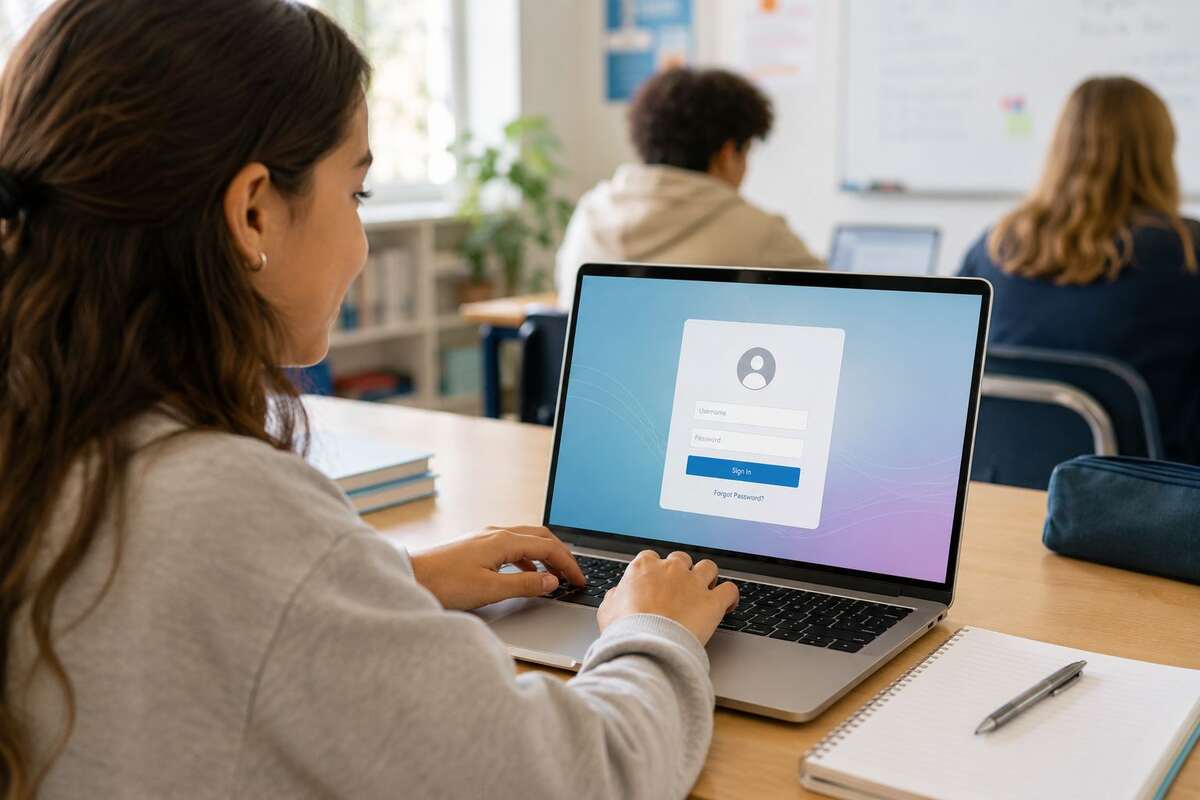

If you’re trying to log into Conroe ISD’s system and keep getting stuck, you’re not alone. CISD SSO is the single sign-on portal that gives students, parents, and staff one login for everything from Canvas to Outlook email. This guide walks you through logging in, fixing common errors, and getting the most out of the portal without the guesswork.
What Is CISD SSO and Why Conroe ISD Uses It
CISD SSO stands for Conroe Independent School District’s Single Sign-On system, powered by ClassLink, an identity and access platform built specifically for schools.
The district uses this setup because it cuts down on password fatigue and support tickets. One login means fewer “I forgot my password” moments and a smoother experience for everyone, from elementary students to campus administrators.
It also gives the district better control over account security, since everything routes through one authenticated system instead of dozens of separate logins scattered across different platforms.
How to Log Into the ClassLink Portal Step by Step
Getting into the portal takes just a couple of minutes once you know where to go. Start by opening your browser (Chrome works best) and heading to the official login page at sso.conroeisd.net.
From there:
- Look for the “Sign in with SSO” or “ClassLink” button, usually near the top of the page or under the Students/Parents menu
- Enter your username and password on the login screen
- Wait a few seconds while ClassLink verifies your account
- Once confirmed, your personal dashboard loads with all your apps ready to open
If this is your first login of the year, you may be using a temporary password provided by your campus. You’ll likely be asked to set a permanent one right away.
Logging In With a Username and Password
Most students log in using a student ID number as their username, though some campuses use a name-based format instead. Staff typically use their district-assigned employee username.
Passwords are case-sensitive, so double-check capitalization before assuming something’s wrong. A simple typo is the most common reason logins fail on the first try.
New students receive their initial login from the campus registrar or homeroom teacher during the first week of school. Mid-year enrollees can get a temporary password from the front office.
Using a QuickCard for Instant Student Login
Younger students or anyone who struggles to remember a password can use a QuickCard instead. It’s a physical QR code that logs you in instantly without typing anything.
To use one, select the QR code icon on the login screen, allow camera access when prompted, and hold the card steady in front of the webcam. The portal opens automatically once the code is recognized.
If the camera won’t read the card, try a well-lit room and make sure the entire QR code is visible in the frame. Glare and dim lighting are the two most common reasons scans fail.
Accessing Canvas, Skyward, and Outlook Through the Portal
Once you’re inside the CISD SSO dashboard, everything else is just a click away. Canvas, the district’s learning platform, sits right on the dashboard as an app icon.
Clicking it sends a secure login token behind the scenes, so you’re signed in automatically without a second password. The same goes for Skyward (grades and attendance) and Outlook (school email) — both are accessible directly from the same screen.
This is also why trying to log into Canvas or Outlook directly from their own websites often throws an error. These accounts are tied to the district’s central system, so ClassLink is the correct entry point.
How Parents Can Set Up Their Own Login Access
Parents get a separate login from their child’s account, which keeps things private and age-appropriate. Each parent account is tied to attendance records, teacher messages, and grade updates rather than student coursework tools.
To view a child’s Canvas assignments specifically, parents need to create a Canvas Parent Observer account, which is separate from the general SSO parent login. This is a common point of confusion, so it’s worth setting up early in the school year.
Campus front offices can help with initial parent account setup if you haven’t received login details yet.
Resetting a Forgotten Password on the CISD SSO Portal
Forgetting a password isn’t a big deal as long as you know the reset process. Click “Forgot Password” on the login screen and follow the prompts sent to your registered email.
If the reset email doesn’t come through, or you’re locked out completely, contact your campus’s technology support during school hours. They can issue a manual reset when the automated system isn’t working.
One tip that saves a lot of hassle: use a personal email for password recovery, not a work or school email. If you’re ever locked out of your account, you won’t be able to access a school email to retrieve the reset code anyway.
Common Login Errors and How to Fix Them
Most login problems come down to a handful of repeat issues. Here’s what usually causes them and how to fix each one:
- Wrong username or password – double-check capitalization and spacing before resetting anything
- Account locked after failed attempts – wait a few minutes or contact campus tech support
- Browser issues – clear your cache or try an incognito window
- Camera not working for QuickCard – check browser permissions and lighting
- Personal devices not connecting – disable VPNs or iCloud Private Relay, since Conroe ISD doesn’t support them
If none of these fix the issue, the problem is often on the district’s end rather than yours. Check Conroe ISD’s technology support knowledge base or call campus IT support for the fastest resolution.
Tips for Keeping Your School Account Secure
Since one login unlocks everything from grades to email, keeping that account secure matters more than it might seem. Multi-factor authentication is already built into the system for staff accounts, adding an extra layer of protection.
For passwords, skip the complicated symbol-heavy combinations that are hard to remember. A longer passphrase, like three random words strung together, is actually harder to crack and easier to recall.
Always log out on shared or public devices, like library computers, before walking away. Closing the browser window isn’t the same as signing out, and an active session can leave the account open to anyone using that device next.
FAQs
What is CISD SSO used for?
It’s Conroe ISD’s single sign-on system that gives students, parents, and staff one login to access Canvas, Skyward, Outlook, and other district tools.
Why can’t I log into Canvas directly?
Canvas accounts are linked to the district’s central login system, so signing in through the CISD SSO portal is required rather than Canvas’s own site.
How do I get a login if I’m a new student?
New students receive their username and temporary password from the campus registrar or homeroom teacher during the first week of school.
Can parents and students share one login?
No. Parents and students each get separate credentials so information stays private and age-appropriate.
What do I do if the QuickCard scanner won’t work?
Check that camera permissions are allowed in your browser and make sure the QR code is well-lit and fully visible to the camera.
Final Thoughts
CISD SSO is designed to make logging in simpler, not more complicated, even if it feels confusing the first time around. Once you know where the login page is, how to reset a password, and which app opens what, the whole process takes under a minute. Bookmark the login page, keep your recovery email up to date, and you’ll rarely run into trouble again.
You might also like: NCEdCloud Login Portal: Official Link and Access Tips