
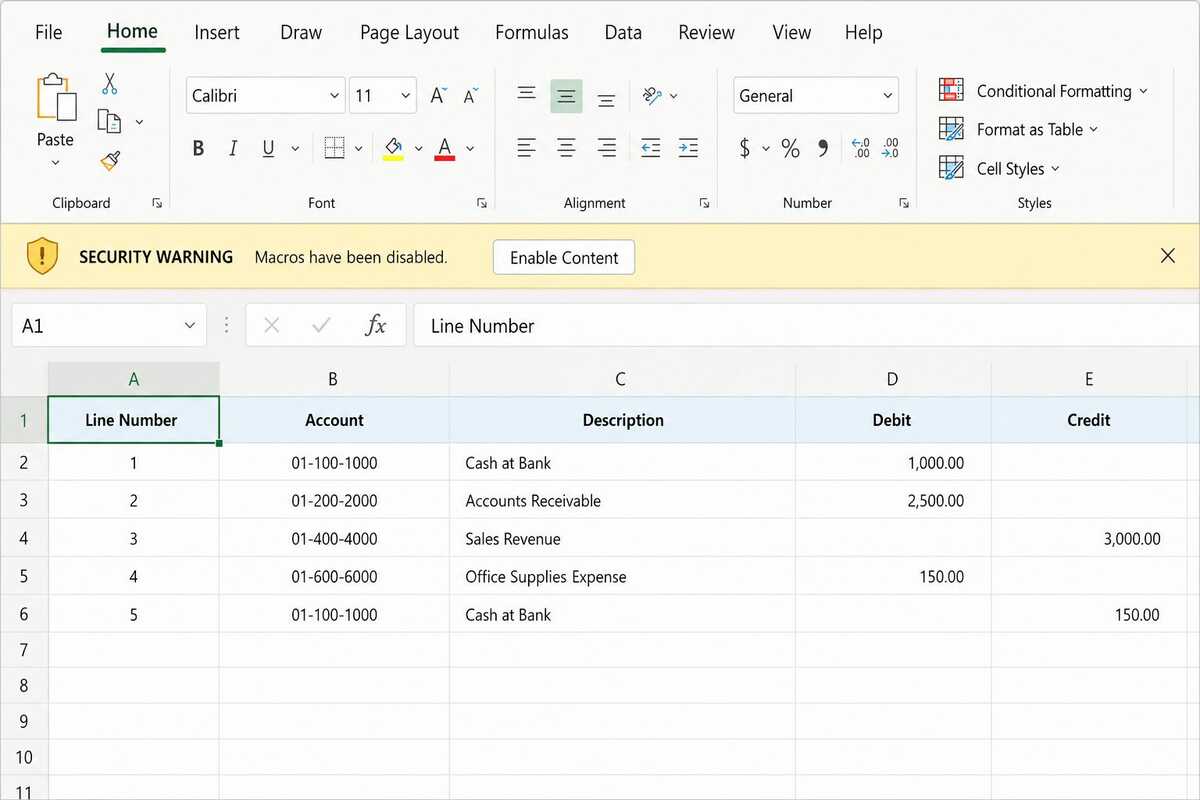
If you’ve opened Excel to upload a journal entry and hit a frozen ADI menu or a yellow security warning, you’re not alone. It’s one of the most common issues people face with Applications Desktop Integrator, and it’s also one of the easiest to fix once you know where to look.
In this guide, you’ll learn why macro security blocks ADI, how to fix it across different Excel versions, what to do when IT policies get in the way, and how to stop it from happening again.
What Causes Macro Security Errors in Applications Desktop Integrator
Applications Desktop Integrator relies on VBA macros to connect Excel to Oracle E-Business Suite. These macros handle authentication, formatting, and data uploads. Modern Excel versions block macros by default as a security precaution, and since ADI wasn’t built with that restriction in mind, it simply stops working when macros are disabled.
You’ll usually notice one of these signs: a security warning bar, a grayed-out ADI menu, upload errors, or a workbook stuck in Protected View. None of this means ADI is broken. It means Excel is doing exactly what it’s designed to do.
Understanding this distinction matters, because the fix depends on which setting is actually causing the block. For deeper configuration details, Oracle covers this in the Oracle Web ADI Implementation and Administration Guide.
Why Excel Blocks Macros Needed for ADI to Work Properly
Excel treats any macro-enabled file with caution, including ADI templates, to protect users from malicious code. This caution shows up in a few common ways.
Files downloaded from the internet or a network drive get flagged automatically. Default settings often disable macros with only a notification. The ADI add-in may not be listed as a trusted publisher, or your company’s Group Policy may override personal settings entirely.
Each of these has a different fix, which is why checking your current settings first saves time later.
How to Check Your Current Macro Security Settings in Excel
Before changing anything, check where your settings currently stand. Go to File > Options > Trust Center > Trust Center Settings > Macro Settings.
You’ll see four options, ranging from ‘Disable all macros without notification’ to ‘Enable all macros’ — you can change your macro security settings anytime from this same menu.
If it’s set to disable macros without any notification at all, that’s likely your root issue, since Excel won’t even give you the option to approve them.
Enabling Macros in Excel 2016, 2019, and Microsoft 365
The fix works the same way across recent Excel versions. Open your ADI workbook, look for the yellow security bar, and click Enable Content. If no bar appears, check File > Info for a similar prompt.
If you don’t want to approve macros every session, go back to Trust Center Settings > Macro Settings and choose Disable all macros with notification. This keeps your system secure while letting you approve ADI with one click each time.
If Microsoft 365 shows no prompt at all, the file may be blocked at a deeper level, which the next few sections cover.
Trusting the ADI Add-In in the Trust Center
Sometimes Excel doesn’t recognize the ADI add-in as trusted, especially after a Windows or Office update. Check File > Options > Trust Center > Trust Center Settings > Trusted Publishers to confirm Oracle’s certificate appears there.
If it’s missing, reinstalling the ADI add-in usually re-registers the certificate automatically. Otherwise, your IT team can add it manually.
It’s also worth checking Add-ins in Excel Options to confirm ADI shows as an active application add-in, not a disabled one.
Adding Web ADI Files to Trusted Locations
If your ADI files come from a shared network drive, Excel may flag the entire folder regardless of your macro settings. Adding that folder as a trusted location removes the restriction.
Go to Trust Center Settings > Trusted Locations > Add new location, then select the folder where your ADI files are stored. Check the subfolder option if needed.
This is especially useful for teams pulling templates from a shared drive daily, since it removes the need to approve macros file by file.
Fixing “Macros Have Been Disabled” Warnings Step-by-Step
This specific message usually means the file carries a hidden “Mark of the Web” flag from being downloaded or emailed. Close the file, right-click it in File Explorer, open Properties, and check for an Unblock option at the bottom of the General tab.
Click Unblock, apply the change, and reopen the file. This resolves the issue at the file level rather than just inside Excel.
If the warning still appears, your macro settings likely need adjusting as well, which the earlier sections cover.
Applications Desktop Integrator Settings for Group Policy Restrictions
In larger companies, macro settings are often locked down through Group Policy, regardless of what you configure yourself. You’ll notice this if Trust Center settings appear grayed out, your changes revert after restarting Excel, or you see a message saying the setting is “managed by your organization.”
In this case, personal troubleshooting won’t help. Your IT admin will need to whitelist the ADI certificate, approve the file location, or create a scoped exception for Oracle EBS files.
Explaining the specific business process tied to ADI usually speeds up approval, since it gives IT a clear, limited reason to make the change.
Common Errors After Enabling Macros (And How to Fix Them)
Enabling macros doesn’t always solve everything right away. A “Compile error in hidden module” usually points to a mismatch between your Excel version and an outdated ADI add-in, which reinstalling the latest version fixes.
If the ADI menu is still missing, check Add-ins > COM Add-ins to confirm ADI is active. If Excel freezes when connecting to Oracle, that’s often a Java or connectivity issue unrelated to macros.
Knowing which error you’re actually dealing with saves time, since not every ADI problem is a macro problem.
Testing ADI After Applying the Macro Security Fix
Once you’ve made changes, test them before jumping back into real work. Open a fresh ADI template, confirm the security bar doesn’t reappear, and check that the ADI menu is fully visible.
Try a small test upload, like a single journal line, and confirm the connection to Oracle EBS completes without errors.
Testing with low-risk data first means you’re not troubleshooting in the middle of a real, time-sensitive upload.
Preventing Macro Issues From Recurring in Future Sessions
A few habits keep this issue from coming back. Store ADI files in a trusted folder rather than downloading fresh copies each time, and avoid opening templates directly from email.
Keep your macro settings on “Disable with notification” instead of fully disabling macros, and make sure Excel and the ADI add-in stay on compatible versions.
Most recurring issues come from small environment changes, like a new laptop or an Office update, rather than ADI itself breaking.
When to Contact Your IT Admin for Applications Desktop Integrator Access
Sometimes the fastest solution is simply flagging the issue to IT, especially if Trust Center settings are locked, you lack permission to unblock files, or the error mentions organizational management.
When you reach out, be specific. Mention that it’s a macro security restriction, share the exact error message, and explain which Oracle EBS process depends on it.
This gives IT what they need to create a scoped fix quickly, rather than treating it as a general support ticket.
FAQs
Why does Applications Desktop Integrator keep disabling macros every time I open Excel?
Your macro setting is likely on “Disable with notification,” which requires manual approval each session. Adding your ADI folder as a trusted location fixes this permanently.
Is it safe to enable macros for ADI?
Yes, as long as the file comes from your official Oracle EBS environment. Avoid enabling macros for files from unexpected emails or unknown sources.
Why is the ADI menu missing even though macros are enabled?
This is usually an add-in loading issue. Check that ADI is active under COM Add-ins in Excel Options.
Can I fix macro settings without admin rights?
Personal Trust Center settings often can be changed without admin access, but Group Policy restrictions require IT involvement.
Does this issue affect both ADI and Web ADI?
Yes. Both rely on macros, so the same fixes apply, though Web ADI may involve additional browser settings depending on your setup.
Conclusion
Macro security errors are one of the most common roadblocks with Applications Desktop Integrator, but the fix is usually quick once you know where to look. Whether it’s clicking “Enable Content,” adding a trusted location, or looping in IT for a policy exception, most issues resolve in a few minutes.
Keep your files in trusted folders, review your Trust Center settings periodically, and know when to escalate to IT. That’s usually all it takes to keep Applications Desktop Integrator running smoothly.